Property Probe
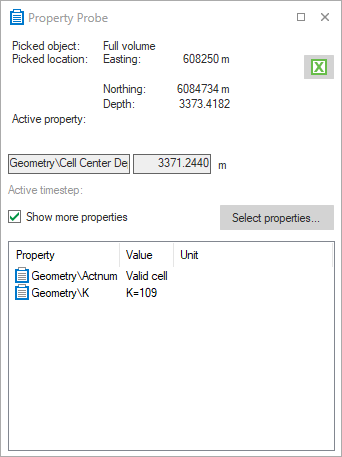
The Property Probe pane click to enlarge
The Property Probe pane displays property data for a selected location or picked position in the 3D View.
You can display it at any time by selecting Workspace > Panes > Property Probe or pressing Ctrl+F6 on your keyboard.
Picked object Name of the selected object. If the object belongs to a model (stratigraphic, fault, structural, etc.), the name of the associated model is displayed as well.
Picked location The northing, easting, and depth coordinate of the selected object.
Active property The object property that is currently being shown. You can only display one property at a time using the JewelExplorer. You can, however, select Use as overlay from the context menu to overlay the visible (active) property with a second property. This can be handy when showing simulation results on a seismic volume. You select the seismic amplitude property as visible and a (downscaled) simulation property as the overlay.
Active timestep If the Active property is a property with time steps, the active time step is given.
Show more properties If this option is toggled on, additional properties and their values at the picked location can be shown in the Property/Value/Unit list. The additional properties are selected with the ‘Select properties’ button (see below). Toggle the option off to hide the additional properties.
Select properties Click to open a window with the other properties that exist on the grid or on the selected object. Check the check boxes to select the properties you want to be visible/invisible in the Property Probe pane. Right-click to show the context menu, where you can select all, none, or invert the current selection. Click OK to close the window.
 With this button you can copy all property statistics via the clipboard into another application. Apart from the property data the report contains the picked location and the property value of the picked cell.